GigReady! — User manual
Prepare songs, organize your set, play and record rehearsals. Follow this guide on your Android tablet. Illustrations show the controls; their layout depends on screen size.
Your first rehearsal
- Choose the GigReady folder location and grant access.
- Open a TXT/DOCX from My compositions, or tap Composer for an empty song.
- Place parts, set tempo and meter, then add lyrics and chords.
- Check click volume and output, then press Play.
- To record, select the input in REC, arm it and press Play.
- Press Back to return home and accept saving to keep your work.
Download the A4 PDF manual · In the app: open Help, then PRINT to print or save the PDF.
1. Create and open a song
Open a TXT/DOCX file from My compositions or the music-note button for folder songs and playlists. With Playlist off, use Load to open one document. Saving is offered when leaving the composition and does not change the source document.
To start without a document, tap Composer on the home screen and build your song using parts and measures. To open a prepared set, tap Playlists and choose a playlist.
Back in the home-screen song-folder picker returns directly to the graphical editor without changing the folder. On Android, E saves the new Word file directly in GigReady/Textes without another picker.
Folder selection uses the built-in browser. The up arrow navigates to parent folders; Back closes the browser. “Authorize another folder (Android)” opens the system picker for initial access: only in that Android window can Back navigate through parent folders.
Each file menu offers Rename, Share and Delete with deletion confirmation. Rename and Delete require support from the Android document provider. These actions are not offered for folders.
On Android and Windows, choose the Textes, Projets, Playlists and REC directories on first launch or with Chemins des bibliothèques on the home screen, in both song and playlist views. Each path remains separately editable. Libraries are read only from disk; only paths and settings are remembered. Textes holds Word/TXT files, Projets holds .gigready projects, Playlists holds playlists.gigready and REC holds WAVs. Grant Android storage access.
The save prompt writes the project in Projets or the catalogue in Playlists. Saving the same title replaces its disk version without a private snapshot. Source Word/TXT files are preserved. Backup / Transfer carries the complete set. Keep storage connected and access permissions valid.
To return home from Composer, Playlists or REC, press Back and choose Yes. No keeps the current screen open. The song or playlist save prompt also lets you cancel returning home. From the playlist list, Yes shows compositions. To close GigReady, press Back from Home; Cancel keeps the app open.
A loaded or imported song provides the structure, measure texts, per-measure tempos, and chords.
Backup / Transfer exports settings and disk projects, playlists and TXT/DOCX documents in a .gigready file, excluding REC and activation. Choose the Backup / Transfer directory. Import restores in Textes and Projets, never in a private library. Same-title projects, settings and the playlist catalogue are replaced after confirmation; other files are preserved. GigReady restarts after importing.
2. Structure and measures
A short tap selects one block for a single pass. Press PLAY to hear four count-in beats, play that block and stop at its end. Long-press one or more blocks for looping: PLAY adds four beats once before the first block, not between blocks or repetitions. Blocks follow song order. Resuming after a pause retains the measure-based count-in.
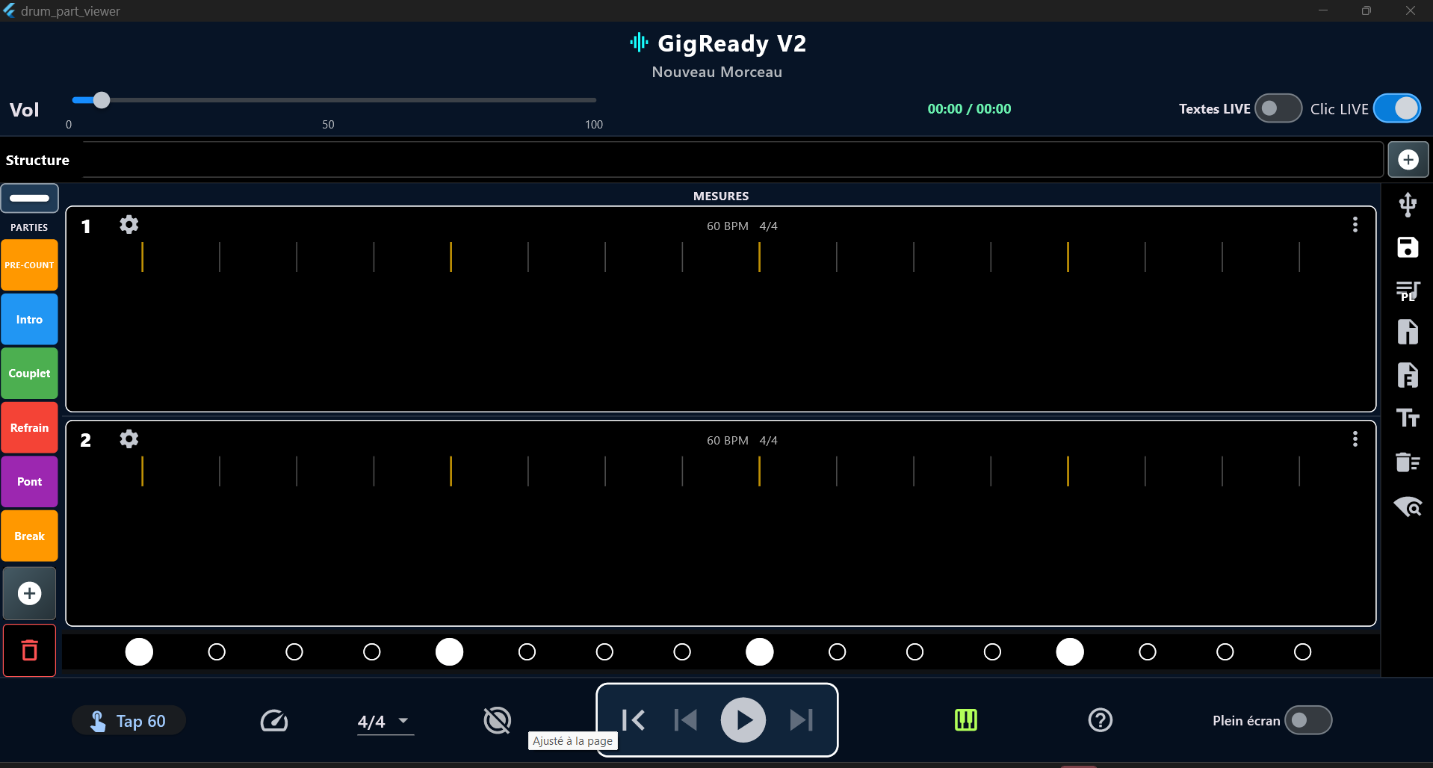
The STRUCTURE strip at the top shows the song sections in order. Its cursor follows the current measure. On the master, tap a section to jump there; long-press it to select loop sections.
Drag a part from the left column into the MEASURES grid to add it. Reorder measures using the drop targets between rows; the + button adds an empty measure.
Use the white handle above the left column to switch between PARTS and CHORDS: tap it, or drag down for chords and up for parts. Hold a part before dragging it onto a measure. The left + creates a custom block; double-tap a block to edit it. Dropping a part block onto the red bin also clears measures using its name.
Below Home, choose 2, 3, 4 or 5 measure windows. Resizing is immediate. During playback, pause and Follow, the current measure stays in the middle, just below the midpoint for 2 or 4 windows. Positions outside the song remain blank.
Outside playlist mode, use a measure’s gear for tempo, signature or text, and its three-dot menu to clear or delete it. Both buttons are hidden while a playlist is loaded.
3. Live text highlighting
Double-tap or long-press a measure to edit its text. The Text button shows or hides measure text.
Enable LIVE Text to move the highlight with playback. Slaves receive the master’s text and scrolling progress.
When importing, each non-empty text line becomes the text for one measure. Blank lines are ignored.
Prepare TXT/DOCX markers on separate lines: **4/4** for the signature, *120* for tempo, and « Intro » for a part. Then add one line of lyrics per measure. Repeat markers to change part, tempo or signature. The global signature control can subsequently replace signatures throughout the song.
4. Tempo, time signature, and PRE-COUNT
Tempo ranges from 40 to 240 BPM. Use Tap or the tempo control; individual measures can have their own tempo.
Supported time signatures are 3/4, 4/4, 5/4, 4/8, 6/8, 9/8, and 12/8. The bottom selector applies the signature to the entire song, including text markers. Individual measures can then be changed independently.
PRE-COUNT runs for eight beats before the song. Slaves show the same count-in and flashes as the master.
The chaser shows subdivisions between beats. Click volume does not change tempo. LIVE click adjusts click panning for stage routing; check the output and channels on your own setup.
5. Chords
Open CHORDS in the left column and drag a chord into a measure. Its position and duration follow the rhythmic grid.
The master can move, resize, or delete chords. These changes are sent to connected slaves.
Scroll the chord families, hold a block and drag it onto a measure’s chord line. Move and stretch it on the grid. The + creates a custom chord; double-tap a library block to edit it. Discarding a placed chord removes only that occurrence; discarding a library block also removes its associated occurrences.
6. Playlists and timers
In folder songs and playlists (music-note icon), enable Playlist and tap songs in playback order. Scroll the list to reach every song; the controls above scroll separately when necessary. Load the selection to use Previous and Next. While a playlist is loaded, measure settings and three-dot menu buttons are hidden.
The master and slaves show elapsed time, total duration, and the remaining playlist time when a playlist is active.
Choose or create a named playlist, select songs in order and press SAVE to keep the selection. Play in the picker loads the playlist; Play/Pause then starts the song. Continuous playback automatically starts the next song; otherwise start each song manually.
7. Wi-Fi master/slave sync
Connect all devices to the same Wi-Fi network. On the master, open Wi-Fi and choose Become master; share the displayed code with the other devices.
On each slave, open Wi-Fi, search for the master, and enter its code. The slave switches to fullscreen and mirrors the song, full structure, text, chords, timers, PRE-COUNT, and flashes.
Slave Play/Pause, beginning, Previous, and Next commands are forwarded to the master. Editing remains master-only.
On Windows, allow GigReady on the private network in Windows Firewall. Discovery uses UDP 43651 and the session uses TCP 43652.
Wi-Fi synchronizes information and commands, not an audio stream. Each device keeps its own output and click settings. Check the connection and latency before performing.
8. MIDI playback controls
Tap the piano icon to select a USB-MIDI or BLE MIDI controller. LEARN maps a command to a note or Control Change.
LEARN REC maps the REC button to a note or Control Change: it opens the REC studio or stops the current take, just like the on-screen button. Arm the input in the studio before pressing Play.
Default MIDI notes are 60 Play, 61 Pause, 62 Previous, 63 Next, and 64 Return to start. Previous/Next require a loaded playlist.
In that menu, use LEARN Tempo (Ear MIDI), then enable Ear MIDI. Play the learned note or CC regularly, once per beat. With “Keep tempo ?” checked, the click and lyrics follow those pulses; the indicator is green within ±1/16 of a beat and red outside that range. With the option off, as it is by default, the song tempo stays unchanged: the indicator is green when the MIDI tempo is within ±2 BPM of the song tempo and red otherwise, regardless of phase alignment. At least two pulses are needed to measure tempo; the indicator is grey before evaluation. The flash delay, adjustable in this menu, compensates for audio output latency for the flash and the indicator in Keep mode.
9. Fullscreen and audio
Fullscreen hides the side tools. A slave is locked to fullscreen during a session; leave the session with the disconnect button.
Audio output, volume, pan, and LIVE click settings are local to each device.
10. REC: record a take
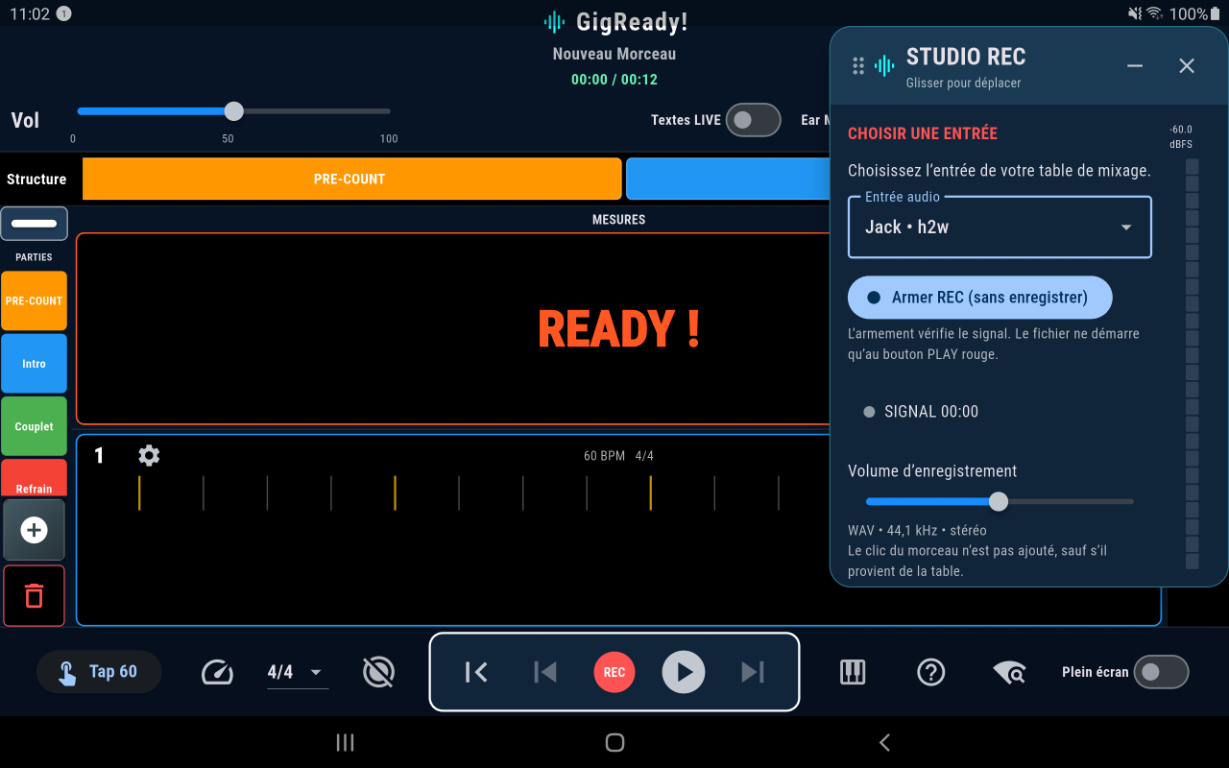
On Android, open the song you want to record, then tap REC to display the floating studio. Connect your audio interface and select the detected USB or jack input. Drag the header to move the studio; − minimizes it without disarming.
Before arming, choose Recorded channels. Music left → dual mono copies the left input to both WAV channels and ignores the right: use it when music and click arrive separately on left and right. Stereo preserves both inputs. Routing is locked during recording; check it at each session.
Arm the take, then check the meter and waveform. Adjust REC gain to leave headroom below 0 dBFS and avoid clipping. Recording gain is separate from playback volume.
The song must include PRE-COUNT, the click must be active and no loop may be selected at the start. Press Play on screen, via MIDI or a Wi-Fi command received by the master. REC starts with PRE-COUNT, which remains audible but is not mixed into the WAV. Its duration remains, with the input signal only. A click returned by the mixer remains part of that signal.
Pause or REC stops the take and offers saving or deletion. At natural song end, playback stops but recording continues for 30 seconds. Three beeps, 500 ms apart, are mixed into the WAV starting 15 seconds before that extension ends. They are added during file finalization, not played as live monitoring alerts, and follow click volume. REC can stop early; moving the app into the background interrupts capture. The meter returns to silence while waveform and duration remain visible.
At the end, choose Save to write the stereo 44.1 kHz WAV to GigReady/REC, or Delete to discard the take. The filename uses the lowercase song title and local arming date/time without seconds: droit_devant_10-11-26_12-50.wav. Suffixes distinguish takes from the same minute. Finish or disarm recording before returning home.
11. Play REC: listen to a take
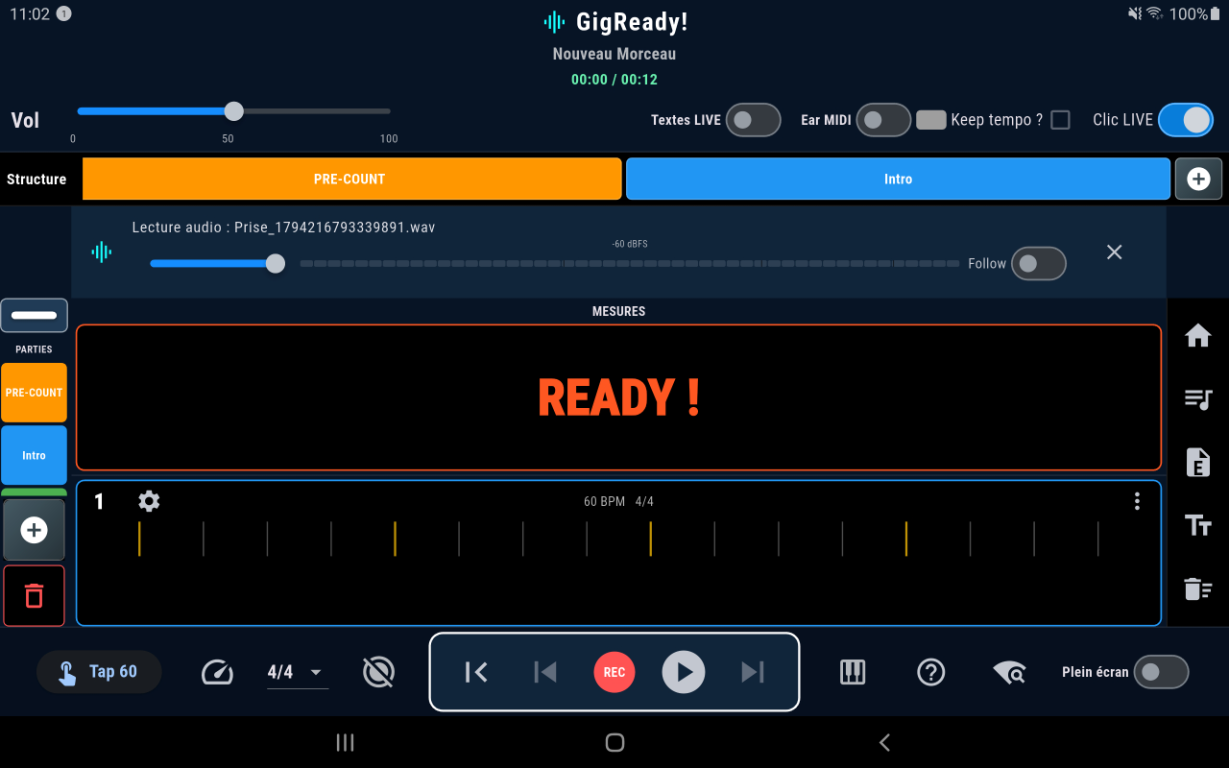
From the home screen, open Your audio recordings and select a take. The Player switches to audio playback; Play/Pause controls the WAV. Measures and text do not follow by default.
Return to start pauses the take and resets its position to zero. The next Play starts from the beginning. Close the audio banner to return to normal song playback.
The Click switch next to Follow adds the loaded song’s click while listening, including PRE-COUNT. Initially off and independent of Follow, it uses the Player’s sound, volume, pan and accents. It does not change the WAV or remove a recorded click. Pause, return to start, end and closing stop this click.
Choose Normalize to −1 dBFS and confirm to replace the external REC WAV after successful processing. Duration, stereo balance and dynamics are preserved. Normalizing cannot repair clipping; silent or unsupported files are rejected.
The library lists only WAVs from the selected REC directory. Share opens an app; Export creates an external copy. Delete permanently removes the disk WAV after confirmation. No permanent private WAV is kept; temporary capture and Android playback files are not a library. WAVs are not included in .gigready backups.
12. Follow: follow lyrics during Play REC
Load the song matching the take first, open its recording, then enable Follow in the audio banner. Measures and lyrics follow the recording position, including pauses and return to start.
Metronome dots also flash with Follow, even with Click OFF. Eighth-note signatures are respected; flashes stop on pause or at the end of the take.
Follow does not extract lyrics or tempo from the WAV. The loaded song’s tempo, time signatures and PRE-COUNT must match the recording, or the markers will drift. Follow adds no click; enable the separate Click switch if needed.
Ear MIDI follows live MIDI pulses; Follow follows an audio file’s position. LIVE Text animates lyric highlighting. These functions do not replace preparing the song.
Rehearsal checklist and troubleshooting
- Keep a .gigready backup and export important WAVs outside the app.
- Check song order, tempo, time signatures and document access. Renaming, moving or deleting a file can invalidate playlist references; select it again.
- Check mixer channels and levels: music left, click right for dual mono. Never connect a power-amplifier output to an audio input.
- Record a short take to verify input, levels and playback before an important session. Leave headroom below 0 dBFS.
- Check MIDI and Wi-Fi on every device; synchronization does not stream audio.
Missing texts
Check the selected folder, Android permission and removable storage connection. Use TXT or DOCX, not DOC or PDF, then refresh.
Back still navigates to parent folders
Back closes the built-in browser; use its up arrow to navigate. “Authorize another folder (Android)” is a system permission window with its own Back behavior. Grant initial access, then use the built-in browser.
Silent or clipped recording
Check microphone permission, selected USB/jack input, routing and gain. MIDI alone carries no sound. Normalizing cannot repair clipping. Compatibility depends on your hardware.
Follow drifts
Load the exact matching song, including tempo, meter and PRE-COUNT. The extra 30 seconds after song end contain no additional measures.
Where are my files?
Open GigReady at the location chosen during setup: Textes holds Word files, Projets and Playlists hold .gigready snapshots, and REC holds saved WAVs. Delete in the audio library removes only the working copy; manage saved WAVs through the folder browser. Use Backup / Transfer to include source documents when transferring a set.
How do I keep a backup?
From Home, open Backup / Transfer and save or share the .gigready file. Keep a copy on another storage device. Share WAVs separately: they are not included in this file.